For the complete documentation index, see llms.txt. Markdown versions of all docs pages are available by appending .md to any docs URL.
Add tools
Add tools to your MCP server.
Before you begin
- Install agentregistry on Kubernetes.
- Create an MCP server.
Add a tool
Each tool is a Python file in the src/tools/ directory of your MCP scaffold. The file must import the shared mcp instance from core.server and define at least one function that is decorated with @mcp.tool(). The file is picked up automatically at server startup.
Create a new tool file. The following command creates a greeting tool that takes a name as input and returns
Hello, {name}!.cat > mymcp/src/tools/greet.py << 'EOF' from core.server import mcp @mcp.tool(description="Return a greeting for the given name.") def example_greet(name: str) -> str: return f"Hello, {name}!" EOFRun the server with the MCP Inspector to verify the new tool is available.
arctl run mymcp --inspectorExample output:
→ fastmcp-python: docker run --rm -p 3000:3000 localhost:5001/mymcp:latest --transport http --host 0.0.0.0 --port 3000
2026-05-14 18:39:46,327 - INFO - Loaded tool module: sum
2026-05-14 18:39:46,329 - INFO - Loaded tool module: echo
2026-05-14 18:39:46,329 - INFO - Loaded tool module: greet
2026-05-14 18:39:46,329 - INFO - 📦 Successfully loaded 3 tools
...
INFO     Starting MCP server 'mymcp' with transport 'http' on http://0.0.0.0:3000/mcp
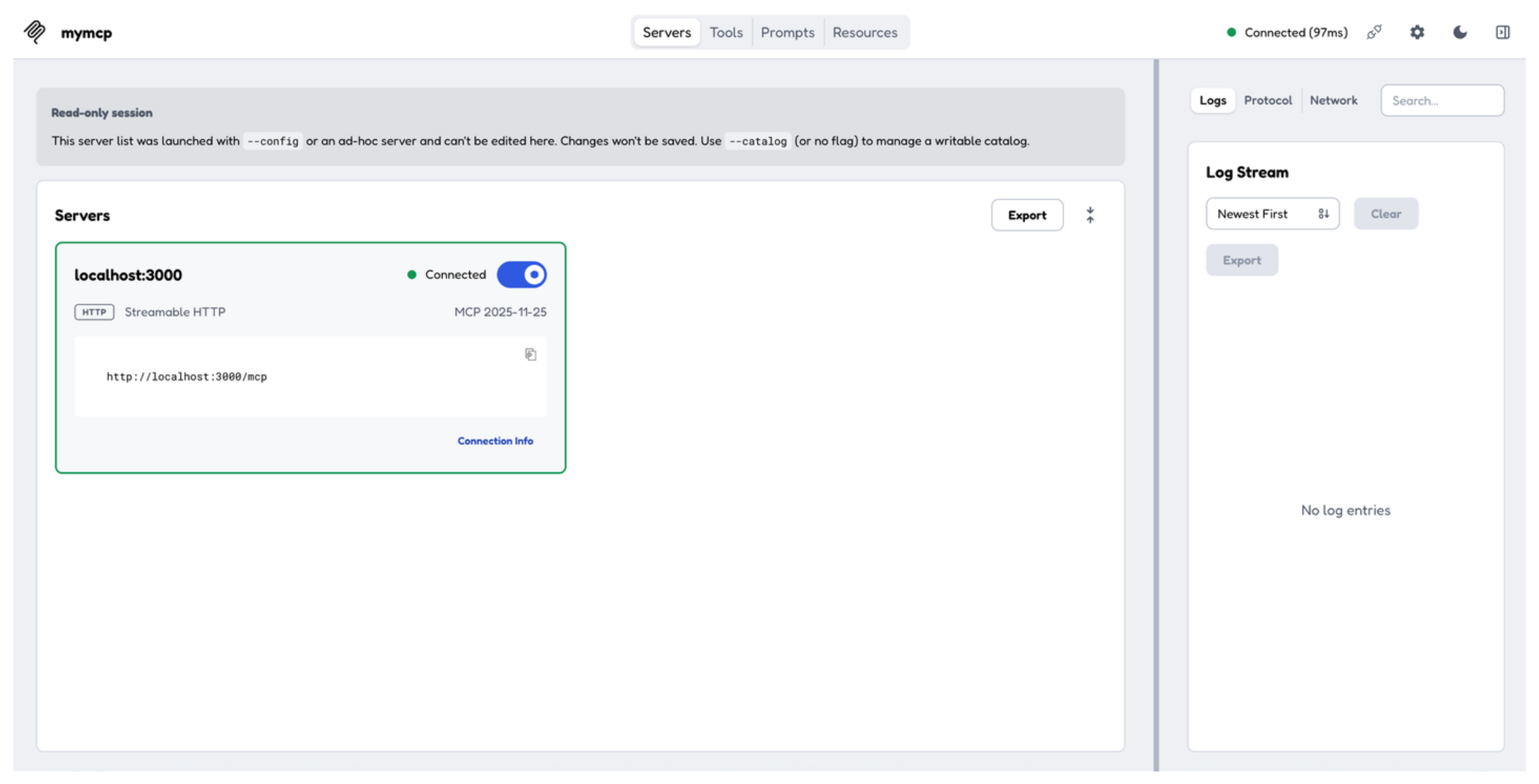
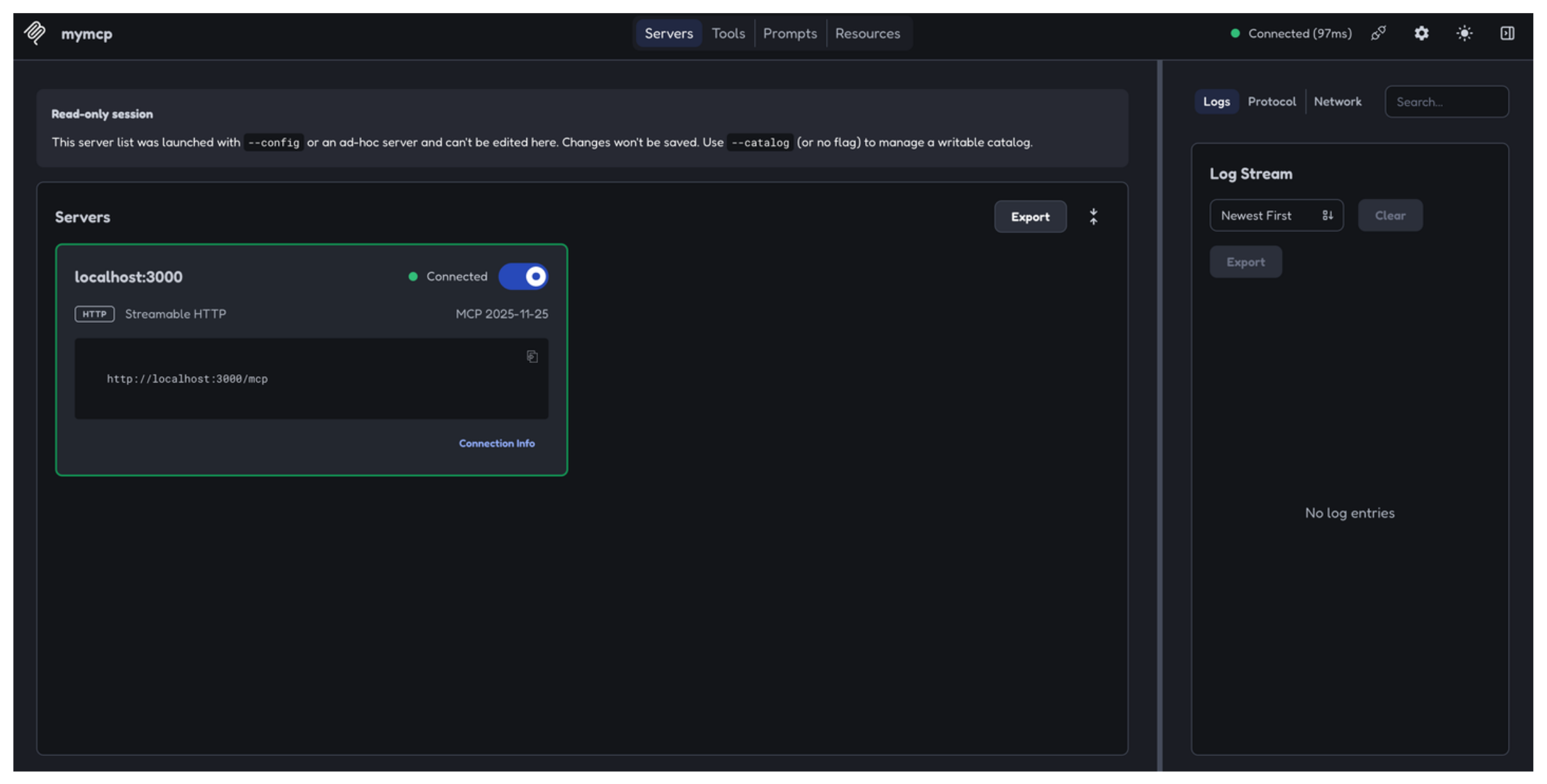
Connect to your MCP server in the Inspector tool.
Try out the new tool.
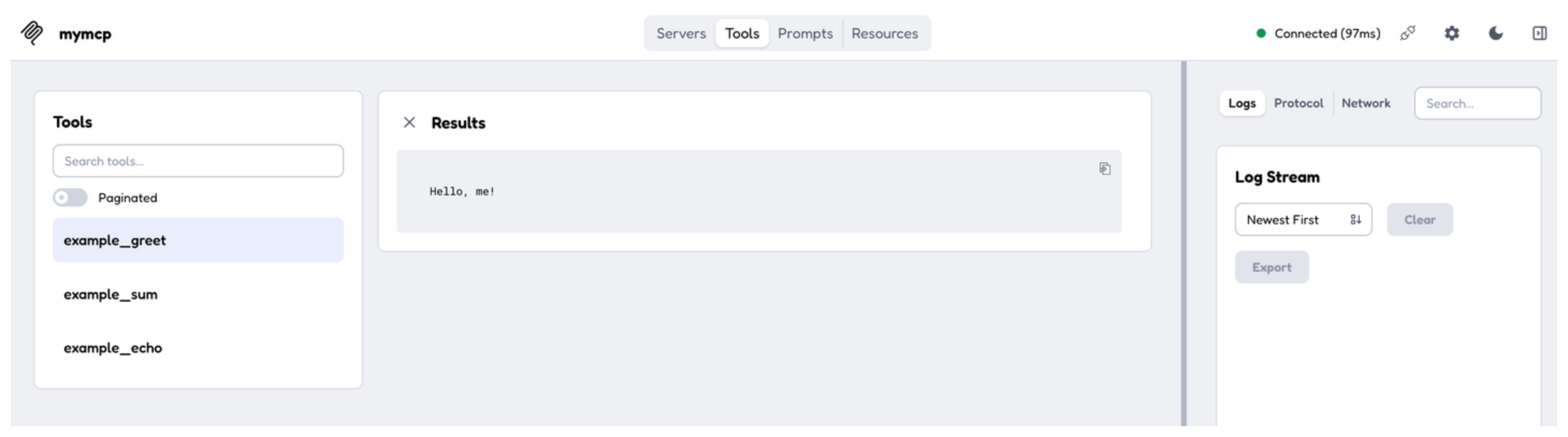
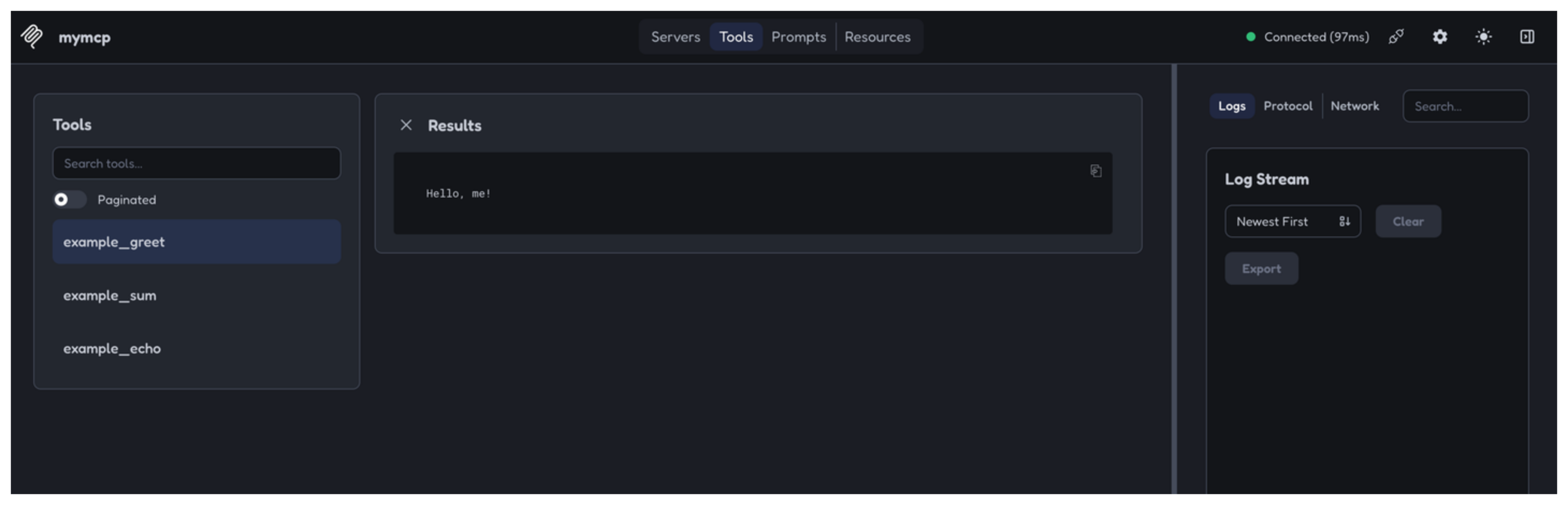
- Navigate to the Tools tab. Verify that you see the
example_echo,example_sum, andexample_greettools. - Select the
example_greettool and enter any name in the name field, such asme. - Click Execute Tool and verify that you see the
Hello, me!message.
- Navigate to the Tools tab. Verify that you see the
Exit the MCP Inspector and stop the server by pressing Ctrl+C.